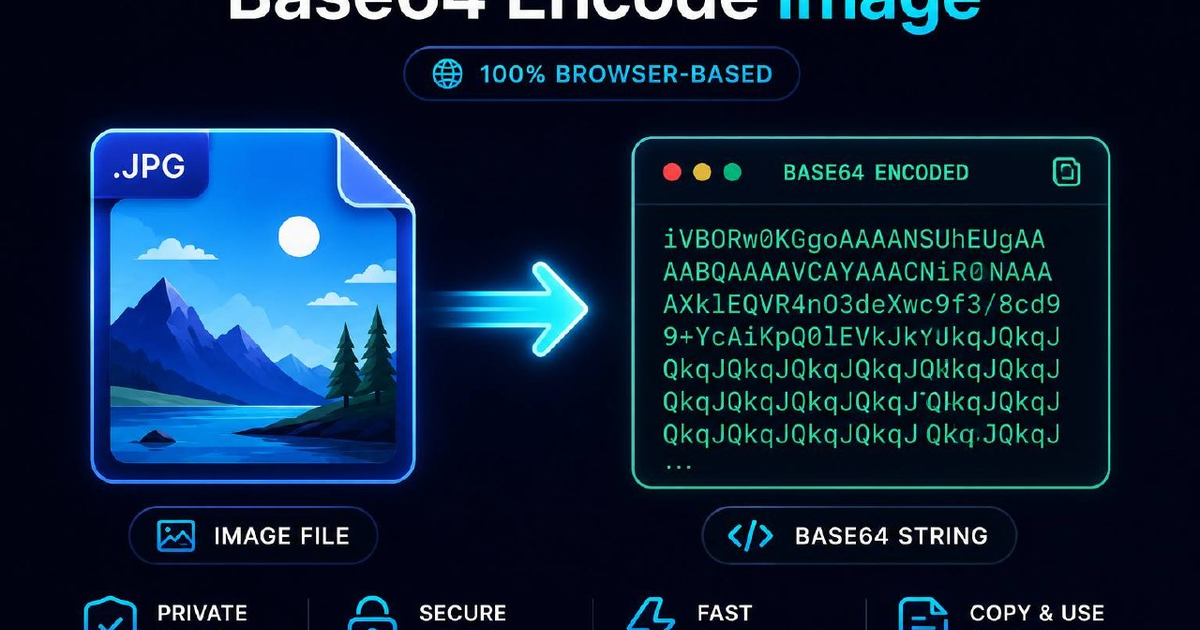

Base64 encoding turns binary image data into a string of ASCII characters that can be embedded directly inside HTML, CSS, or JSON. Doing this in your browser, rather than on a remote server, keeps your files private, eliminates upload latency, and works perfectly for small assets like icons, logos, and CSS background images. This guide explains exactly how browser-based Base64 encoding works, when to use it, and how to do it safely.
How do I Base64 encode an image in my browser?
Open a client-side encoder, drag your image file into the drop zone, and the browser uses the FileReader API to read the file as a Data URL. The output is a Base64 string you can copy and paste into your HTML or CSS. Nothing ever leaves your device, which makes it safe and private.
What Base64 Encoding Actually Does
Base64 is a binary-to-text encoding scheme that represents binary data using 64 printable ASCII characters (A-Z, a-z, 0-9, plus + and /, with = as padding). When you Base64 encode an image, you trade roughly 33% extra file size for the ability to transmit or embed that image anywhere text is allowed, inside JSON payloads, CSS files, HTML attributes, or email bodies.
Why Encode in the Browser?
Most online "image to Base64" converters upload your file to a remote server, encode it there, and return the result. That model has three problems: your image data leaves your machine, the round-trip adds latency, and you have to trust the server operator's privacy policy. A browser-based encoder using the Image to Base64 converter runs entirely in your tab using the JavaScript FileReader API, no upload, no server, no logs.
Step-by-Step: Encoding an Image Client-Side
1. Open a Client-Side Tool
Use a converter that explicitly states it processes files locally. The InDemandTools image-to-Base64 converter runs purely in your browser. You can verify this by opening DevTools and checking the Network tab while you encode a file. You will see zero outbound requests.
2. Select or Drop Your Image
Supported formats typically include PNG, JPG, JPEG, GIF, WebP, and SVG. The browser reads the file via FileReader.readAsDataURL(), which returns a string already prefixed with the correct MIME type, like data:image/png;base64,iVBORw0KGgoAAAANSUhEUgAA....
3. Copy the Output
The encoded string can be pasted directly into a CSS background-image property or an HTML <img> src attribute. For raw Base64 work without the Data URL prefix, the general-purpose Base64 encoder/decoder handles arbitrary text and binary payloads.
When to Use Base64-Encoded Images
Good Use Cases
- Small UI icons under 4KB, inlining avoids an extra HTTP request and reduces perceived load time on the critical render path.
- Email signatures, many email clients block external image references, so inline Data URLs render reliably.
- CSS sprites alternative. Embed a handful of decorative backgrounds directly inside a stylesheet that ships with your app.
- Offline-first PWAs — bundle critical imagery inside cached HTML so it renders without network access.
- Single-file HTML demos, share a self-contained
.htmlfile with no external dependencies.
When to Avoid Base64
- Images larger than ~10KB, the 33% size penalty plus the loss of browser caching outweighs the saved request.
- Anything used on more than one page, an external image file gets cached by the browser; an inlined Data URL is re-downloaded inside every HTML document that references it.
- Hero images and photography. These benefit from
srcset, lazy loading, and CDN delivery, none of which work with Data URLs.
Using Your Base64 String
In HTML
<img src="data:image/png;base64,iVBORw0KGgoAAAANSUhEUg..." alt="Logo">In CSS
.hero {
  background-image: url("data:image/svg+xml;base64,PHN2ZyB4bWxucz0i...");
}
In JSON APIs
{ "avatar": "data:image/jpeg;base64,/9j/4AAQSkZJRgABAQEASABIAAD..." }Privacy and Security Considerations
Browser-based encoding is the privacy-safe default because the file bytes never leave your device. But there are still a few things to keep in mind. Base64 is encoding, not encryption, anyone who sees the string can decode it back to the original image. If you embed a Data URL inside a public webpage, treat it the same as publishing the original file. Also, some Content Security Policy (CSP) directives block Data URLs in img-src or style-src; check your CSP header before relying on inline images in production.
Frequently Asked Questions
Does Base64 encoding compress my image?
No, quite the opposite. Base64 increases file size by roughly 33% because it uses 4 ASCII characters to represent every 3 bytes of binary data. Compress your image (with tools like Squoosh or TinyPNG) before encoding, never after.
Is it safe to Base64 encode sensitive images in the browser?
Yes, as long as the encoder runs entirely client-side. Verify by checking your browser's Network tab, a true client-side tool makes zero outbound requests when you drop a file. The InDemandTools image-to-Base64 converter works this way.
Can I decode a Base64 string back into an image?
Absolutely. Paste the string (with or without the data: prefix) into the Base64 decoder and it will reconstruct the original binary file for download.
Why is my CSS background showing as a broken link when using Base64?
Three common causes: a missing or incorrect MIME type prefix (data:image/png;base64,), an unquoted url() value containing special characters, or a Content Security Policy blocking data: sources. Wrap the value in double quotes and confirm your CSP allows data: in img-src or style-src.
Does Base64 work for SVG files?
Yes, but for SVGs you usually get smaller output by URL-encoding the markup directly instead of Base64-encoding it, SVG is already text, so the Base64 step just inflates it.
Will inlined Base64 images hurt my page speed score?
For very small assets (under ~2KB) inlining typically improves Largest Contentful Paint by eliminating a request. For anything larger, you lose browser caching and increase HTML payload size, which usually hurts speed. Profile both approaches with Lighthouse before committing.
Summary
Base64 encoding an image in your browser is fast, private, and ideal for tiny inline assets. Use the image-to-Base64 converter for files and the general Base64 tool for arbitrary text. Keep encoded assets small, mind your CSP, and remember that Base64 is not a substitute for compression or encryption.
Last updated: 21 May 2026