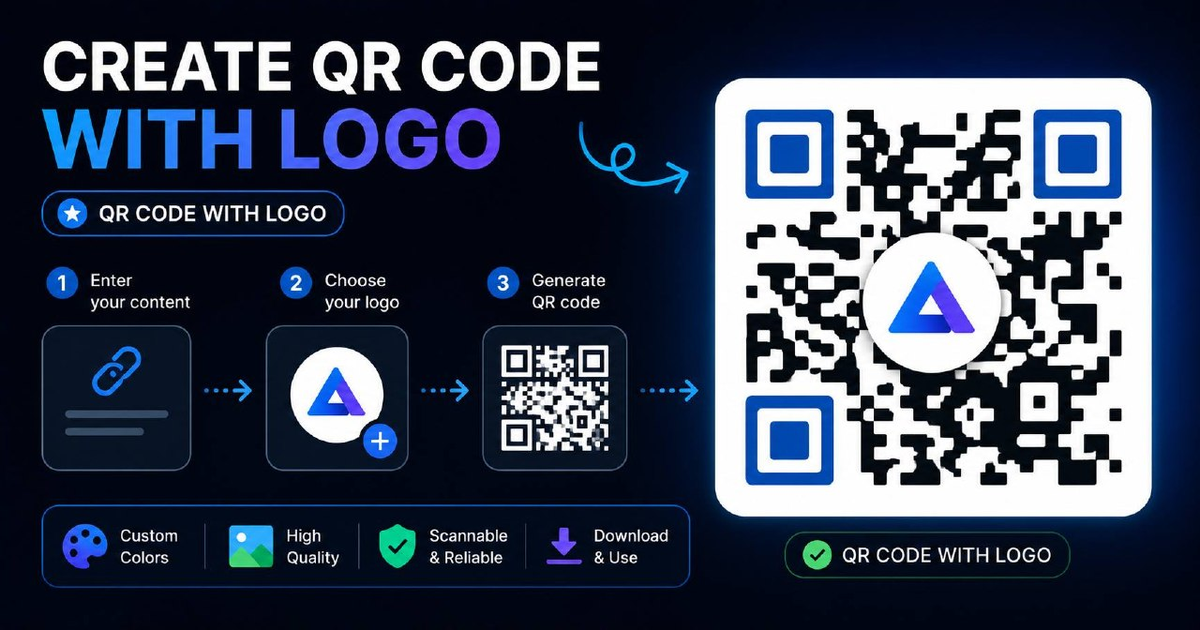

To embed a logo in a QR code without breaking it, generate the QR at error-correction level H (30% redundancy), then overlay a logo no larger than 30% of the QR's total area, centered. The error-correction algorithm reconstructs missing data, but only up to its threshold. Test the result on three devices (iOS Camera, Android default, third-party reader) before printing.
How do you add a logo to a QR code without breaking it?
To embed a logo in a QR code without breaking it, generate the QR at error-correction level H (30% redundancy), then overlay a logo no larger than 30% of the QR's total area, centered. The error-correction algorithm reconstructs missing data, but only up to its threshold. Test the result on three devices (iOS Camera, Android default, third-party reader) before printing.
How to add a logo to a QR code in 4 steps
- Generate the QR at level H. Open our free QR Code Generator, paste your URL, and set error-correction to "High". This adds 30% data redundancy so the QR still scans with up to 30% of pixels obscured.
- Download as PNG. Use the highest resolution offered (typically 1024×1024). Avoid SVG if your printing workflow flattens vectors.
- Overlay a square logo. Open the QR in any image editor. Center a square logo sized at 20-25% of the QR width. Add a white square background under the logo so the QR's data modules are cleanly replaced, not overlapping.
- Test on three devices. Scan with iOS Camera, Android default, and a third-party reader (e.g. QR Code Reader by Scan). All three must read cleanly within 3 seconds at 30cm distance.
Error-correction levels explained
| Level | Redundancy | Max logo coverage | Use case |
|---|---|---|---|
| L (Low) | 7% | Avoid logos | Clean print, no overlay |
| M (Medium) | 15% | 10-15% | Small icon only |
| Q (Quartile) | 25% | 20-25% | Standard logo |
| H (High) | 30% | 25-30% | Large logo, dirty print |
5 design rules for QR codes with logos
- Maintain quiet zone. Keep a 4-module white border around the entire QR. Crowding the edges with text or graphics breaks scans.
- High contrast. Black QR on white background is optimal. Coloured QRs need a luminance contrast ratio of at least 4:1.
- Square logos only. Round or irregular logos make it harder for the error-correction algorithm to reconstruct the underlying data modules.
- Logo background. Always place a white or QR-background-coloured square behind the logo. Never let the logo overlap module corners.
- Test at the smallest size you'll print. A QR that scans at 5cm may fail at 2cm. Test the worst-case print size.
When to use a frame instead of an inline logo
If your logo is non-square or you need brand prominence above scan reliability, use a "frame": a rectangular container with the logo and a CTA (e.g. "Scan to Order") outside the QR area. Frames eliminate scan-rate risk completely and lift conversion 40-80% versus a bare QR.
Frequently Asked Questions
How big can the logo be without breaking the QR?
At error-correction level H, a centered logo can cover up to 30% of the QR area before scans start failing. Stay at 20-25% for safety, especially for printed QRs.
Can I use a coloured QR code with a logo?
Yes, but keep the dark modules darker than the background by a luminance ratio of at least 4:1. Pastel-on-white usually fails. Test before printing.
Does adding a logo hurt scan rate?
Done right, a logo lifts scan rate by 30-50% because it adds visual trust. Done wrong (oversized, off-center, low-contrast) it kills the QR entirely. The 30% rule is non-negotiable.
Related Free Tools
Last updated: 21 May 2026, author: Mirsal Saidu.