Are online file converters safe?
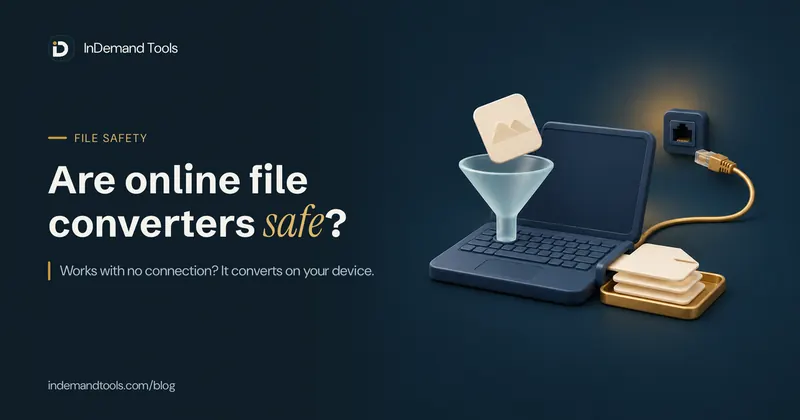
Online file converters are safe when the file you give them is not kept somewhere others can reach, and the file you get back is a clean copy of what you asked for. Most free converters send your file to their server, so you are trusting a company you know little about with whatever is inside it. The safest ones never receive the file at all, because the conversion runs in your browser. You can check which kind a site is in about two minutes, with the offline test or the network test below, before you give it anything private.
Two cases that show what can go wrong
In March 2025 the FBI's Denver field office warned that criminals were running free online document converters to spread malware. As CBS Colorado reported, the fake sites handled files ending in .pdf, .doc and .jpg and offered to combine files, the same jobs real converters do. The returned file could carry malware, and the sites could also scrape personal details such as Social Security numbers, passwords, bank details and crypto wallet data from the documents people uploaded. The office's advice was to study a converter site closely and keep antivirus software up to date.
The second risk needs no criminal at all. In July 2024 researchers at Cybernews found that two PDF tools, PDF Pro and Help PDF, had left their cloud storage open to anyone. BGR's report counts 89,062 exposed files, among them passports, driving licences, contracts and certificates. People had uploaded them to make a PDF, and the files stayed on the server long after the job was done.
These are two different failures, and they call for different checks.
| Risk | Where it happens | What protects you |
|---|---|---|
| Your file leaks or is misused | On the converter's server, after you upload | A tool that converts in your browser, or uploading only what you can afford to lose |
| The download is malware | On your device, after you open the result | Checking the extension, which catches programs posing as documents, plus an updated PDF reader and antivirus for harmful real documents |
| A fake site asks you to install something | On your device, before any conversion | Never installing a program or extension to convert one file |
A site that converts in the browser removes the first risk completely, since the file never reaches anyone. It does not remove the other two, so the download check later in this guide applies to every converter, including ours.
The offline test: does the converter work without internet?
This test works on a phone or a computer and needs no technical skill. If a converter still produces your file while your device has no connection, the conversion runs on your device and the file did not have to go anywhere to be converted.
- Open the converter and run it once with a harmless test file of the same kind as your real one: a screenshot for an image tool, two PDFs saved from any public web page for a PDF merger, or an old photo of your desk for a HEIC converter. Many honest in-browser tools download their conversion code the first time you use them, and this warm-up loads it.
- Switch on airplane mode, or turn off Wi-Fi and unplug the network cable.
- Convert your real file and save the result.
- Close the tab, then go back online.
Closing the tab before you reconnect stops a page from simply sending the file the moment the connection returns. It can't rule out everything: a site built to deceive could save data in your browser and send it on a later visit. For extra caution, clear the site's stored data in your browser settings after the test, or run it once with harmless files and keep using a tool that passes.
The warm-up in step 1 is the part most guides leave out, and without it you can wrongly fail an honest tool. Our Merge PDF tool, for example, loads its PDF library only when you start using it, and the HEIC to JPG converter loads its image decoder the first time it runs. Skip the warm-up and both will show an error offline, even though neither ever uploads a file. So a failed offline test does not prove an upload. It means you should run the network test.
The network test: watch what leaves your computer
On a desktop browser you can see every request a page makes. It takes a minute and gives a clearer answer than the offline test.
- Press F12 (or Cmd+Option+I on a Mac) and open the Network tab.
- Tick "Preserve log" so the list survives a page change, then click the clear button to empty it.
- Add your file to the converter and run the conversion.
- Look at the Method column. If you can't see it, right-click any column header and turn it on.
What the requests mean:
- A GET request for a file ending in .js or .wasm is the tool loading its own code. That is normal.
- A POST or PUT request around the time you added or converted your file is a send. Click it and open the Payload or Headers tab. If the Content-Length is close to your file's size, your file went to the server.
- Small POST requests of a few hundred bytes are usually analytics. Click one and read its payload: it should hold page names and events, not text from your document.
- A WS entry is a WebSocket, an open channel that can carry a file in pieces. Watch its Messages tab while you convert.
If every request you see is a GET for code, fonts or images, no request URL carries long strings of data, and nothing near your file's size goes out, you have not seen your file leave. That is strong evidence for an ordinary tool. A site built to hide an upload could split it into many small requests, so for private files use this test together with the offline test.
Check the file you download before you open it
Much of the FBI warning was about the download, and the offline test can't help with that. A fake converter can produce a document that looks right and still carry something harmful, or hand you a program dressed up as a document. These checks take seconds:
- Turn on file extensions. Windows hides them by default: in Windows 11 File Explorer choose View, then Show, then File name extensions, and in Windows 10 tick File name extensions on the View tab. On a Mac, open Finder Settings, then Advanced, and tick "Show all filename extensions".
- Make sure the extension matches what you asked for. A file called
invoice.pdf.exeis a program, whatever its icon looks like. Don't open anything ending in .exe, .msi, .bat, .cmd, .scr, .js, .vbs, .lnk or .iso when you expected a document or an image. - Be wary of a ZIP when you asked for one file. Open the ZIP's list of contents and check every extension inside before you extract anything.
- A Word file that asks you to "Enable content" or "Enable macros" straight after a conversion should be deleted. A converted document has no need for macros.
- If your browser or antivirus warns you about the download, believe it. Don't click "Keep anyway" for a file you could convert somewhere else.
A site that asks you to install a "converter app" or a browser extension to finish the job has failed the test before you upload anything.
Which conversions can run in your browser
Plenty of people assume every converter needs a server, but the common image and PDF jobs don't. Modern browsers can decode images, draw them at a new size and write PDFs, so these tasks can happen on your own device:
| Task | Can it run in the browser? | Free tool that does it locally |
|---|---|---|
| Shrink a photo's file size | Yes | Image Compressor |
| Resize or crop an image | Yes | Image Resizer |
| iPhone HEIC photo to JPG | Yes | HEIC to JPG |
| Photos or scans into one PDF | Yes | JPG to PDF |
| Combine PDFs or pick pages | Yes | Merge PDF |
| Word or PowerPoint to PDF with the exact layout | Rarely; most sites use a server | Use your office app's "Save as PDF" |
| PDF to an editable Word file, or reading text from scans | Rarely; most sites use a server | Use desktop software for private files |
Scanning a passport into a PDF, shrinking a payslip photo for a form and merging signed contracts all fall into the first five rows, so none of them needs to leave your device. The same reasoning applies to data files: our guide to converting CSV to JSON without uploading walks through a local converter for spreadsheets.
You may already have a local converter installed. On Windows, "Microsoft Print to PDF" turns anything you can print into a PDF. On a Mac, Preview can export images as JPG or PNG and combine pages into one PDF. On an iPhone, setting Camera, then Formats, to "Most Compatible" saves new photos as JPG instead of HEIC.
If you have to use a server-based converter
Some jobs, like turning a scanned PDF into editable text, usually do need a server. You can still lower the risk:
- Send only the pages you need. To cut pages out of a PDF without uploading it, open it in Chrome or Edge, choose Print, set the destination to "Save as PDF", then choose Custom under Pages and type the page numbers you want to keep. If you are combining several PDFs anyway, Merge PDF lets you pick pages from each one.
- Read how long the site keeps files. A clear figure in hours, plus a delete button you can press yourself, is a better sign than "we respect your privacy". A policy can't prove what happens on the server: the PDF Pro and Help PDF files were sitting in open storage when researchers found them.
- Go back to a converter you have used before instead of trusting the first search result or ad. Copying the look of a well-known site is easy, so a familiar design proves nothing.
- Don't give an email address to "receive" your converted file. The file should download directly from the page.
- Never upload passports, ID cards, tax forms or medical records to a site you found five minutes ago.
The same habit protects you from other tricks. Checking who runs a page before you trust it is the core of our guide on how to check if a QR code is safe, and it works just as well for converter sites.
What to do if you already used a suspicious converter
If you uploaded private documents to a site you now doubt, or opened a file it returned, act in this order:
- Disconnect the computer that opened the file from the internet, and run a full scan with up-to-date antivirus.
- From a different device you trust, change the passwords for email, banking and any account you used on that computer. Make each one new; a password generator saves you from reusing an old pattern.
- Tell your bank if the documents held account details, and watch your statements.
- If the documents showed an ID number, check with the issuer what to do next. In the US you can also freeze your credit with the three credit bureaus.
- Report the site. In the US that is the FBI's Internet Crime Complaint Center at ic3.gov; elsewhere, your national cybercrime or fraud reporting service.
- If the scan finds something or the computer behaves oddly, have it cleaned by a professional before you log in to anything on it again.
How InDemand Tools handles your files
Our file tools are built so the offline test passes. The Image Compressor, Image Resizer, HEIC to JPG, JPG to PDF and Merge PDF tools read your file in the browser, convert it there and save the result straight to your device. Our server sends the page and the conversion code, and never receives the file. You don't need to take our word for it: run either test above on any of them. The compressor works the same way as described in our guide to compressing images in the browser.
The exceptions are the YouTube and Instagram downloaders, which have to fetch the video from the internet on our side. You give them a link, not a file from your device.
Frequently asked questions about online file converters
Are online file converters safe to use?
They can be. A converter that works in your browser never receives your file, so it can't leak it. A server-based converter is only as safe as the company running it, and you usually can't check how it stores files. For private documents, use a local converter, and check every download's extension before opening it.
Is it safe to merge PDF files online?
Merging in your browser removes the biggest risk, because your PDFs never reach anyone else's server. Merging only rearranges pages, so a web page can do it without a server. Run the offline test: warm the tool up with two harmless PDFs, go offline, then merge your real files. If it works, the merge runs on your device and nothing had to be uploaded.
Can a converted PDF contain a virus?
A PDF can contain links, embedded files and scripts, and fake converters have been used to deliver malware. Keep your PDF reader updated, don't open attachments inside a PDF you didn't expect, and delete any "PDF" whose real extension turns out to be .exe, .js or similar.
Does HTTPS mean my uploaded file is safe?
No. HTTPS only protects the file while it travels to the server. It says nothing about who can read it once it arrives, how long it is kept or whether the site is honest. Criminal sites use HTTPS too, because the certificates are free.
How do I convert files without uploading them?
Use a converter that runs in the browser and prove it with the offline test, or use software already on your device, such as Microsoft Print to PDF on Windows or Preview on a Mac. Image compression, resizing, HEIC to JPG and PDF merging all work this way.
How can I tell if a converter website is fake?
Warning signs include a request to install a program or browser extension, a download that arrives as a ZIP or an .exe, a demand for your email address before you get the file, and a site you only found through an ad. A real converter gives you the file you asked for, with the extension you asked for.